Premium Online Image DPI Changer
Set exact DPI (72, 300, 600+) for print-ready images instantly — right inside your browser, with zero quality loss.

Why DPI Matters for Printing
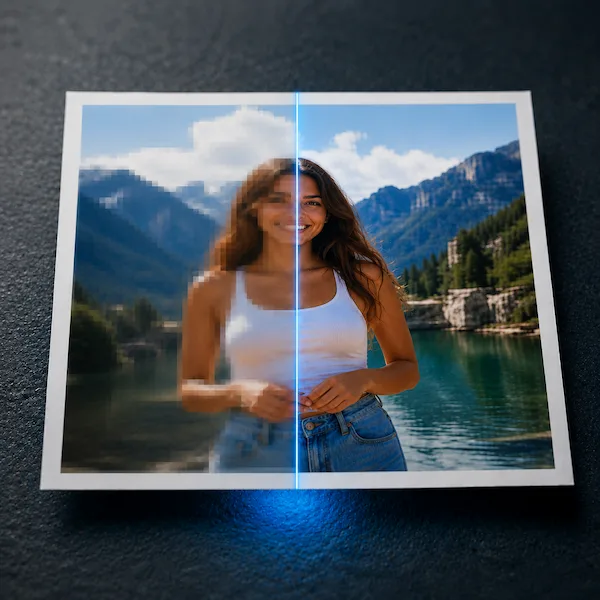
Changing your image’s DPI (Dots Per Inch) is the single defining factor between a blurry, pixelated physical print and a razor-sharp, professional-grade masterpiece. Whether you are submitting designs to book publishers, selling on print-on-demand marketplaces, or uploading documents to official government portals, standard web images saved at 72 DPI will almost always look distorted, soft, or low-quality once they reach a physical printer.
This free online Image DPI Changer updates your image’s internal resolution metadata to exactly 300 DPI, 600 DPI, or any custom value you need — instantly preparing your photos for high-fidelity printing. Because the tool rewrites only the DPI resolution headers and never re-samples or compresses the actual pixels, your image stays perfectly crisp with absolutely zero quality loss.
Professional photographers, graphic designers, self-publishing authors, and Etsy or Amazon KDP sellers all rely on correct DPI tagging. A photo that looks flawless on screen can be rejected by a print service if its embedded DPI value is too low. With our print-ready DPI converter, you fix that problem in seconds — no Photoshop, no software installation, and no monthly subscription required.
How to Convert Images to 300 DPI Properly
Converting an image to 300 DPI the right way takes just three quick steps. First, drag and drop your photo — or up to ten images at once — into the tool above. Next, choose your industry-standard preset: 300 DPI is the universal choice for standard photo prints, magazines, brochures, and book interior formatting, while 600 DPI is reserved for luxury fine-art scanning and gallery-grade reproduction. Finally, click Apply DPI & Process and your print-ready file downloads instantly.
Because our browser-based architecture modifies only the layout resolution metadata headers — the JFIF segment in JPG files and the pHYs chunk in PNG files — your native pixels remain completely untouched. This prevents any compression damage, blurring, banding, or shifting artifacts that cheaper “DPI converters” often introduce.
You can also use the Smart Print Preset dropdown to match exact industry requirements such as an Amazon KDP book cover, a passport photo, or a large-format billboard poster. Every processed file carries the correct embedded DPI tag, so it is accepted on the first try by professional print shops, publishing portals, and document-upload systems worldwide.


Complete Print Resolution Matrix
Use this detailed reference chart to match your image to the exact DPI and pixel resolution required for any print purpose — from web graphics to gallery-grade fine art:
| Print Purpose | Recommended DPI | Ideal Pixel Resolution | Common Size | Best For |
|---|---|---|---|---|
| Web / Social Media | 72 DPI | 1080 × 1080 px | Square post | Screens, email, posts |
| Office Documents | 150 DPI | 1240 × 1754 px | A5 | Reports, handouts |
| Standard Photo Print | 300 DPI | 1200 × 1800 px | 4 × 6 inch | Family photos, prints |
| Magazine / Brochure | 300 DPI | 2480 × 3508 px | A4 | Standard quality print |
| Book Cover (KDP) | 300 DPI | 2560 × 1600 px | 6 × 9 inch | Self-publishing, Amazon |
| Passport / ID Photo | 300 DPI | 600 × 600 px | 2 × 2 inch | Official documents |
| Billboard / Poster | 150 DPI | 7200 × 10800 px | Large format | Outdoor advertising |
| Fine Art / Gallery | 600 DPI | 4960 × 7016 px | A4 giclée | Luxury scans, fine art |



Common Questions
What is the exact difference between PPI and DPI?
PPI (Pixels Per Inch) describes the pixel density of a digital image on a screen, while DPI (Dots Per Inch) describes how many ink dots a printer places per inch on physical paper. In everyday use the two terms are used interchangeably, and the value stored in your image file is the resolution tag that printers and publishing portals read to size your image correctly. Our tool writes this exact tag so your file is interpreted properly during printing.
Why doesn’t changing DPI increase the file size on my disk?
Changing DPI does not add or remove any pixels from your image — it only rewrites a small piece of metadata inside the file header (the JFIF segment for JPG, or the pHYs chunk for PNG). Since the actual pixel data is untouched, the file size stays virtually identical. A 2 MB photo remains roughly 2 MB whether it is tagged at 72 DPI or 600 DPI. DPI affects the printed physical size, not the digital storage size.
How do I check if my file successfully registered the new 300 DPI tag?
On Windows, right-click the file, choose Properties, open the Details tab, and look at the “Horizontal resolution” and “Vertical resolution” values. On Mac, open the image in Preview, then go to Tools and Show Inspector to view the DPI. You can also re-upload the processed file into our tool — it will read and display the current DPI so you can confirm the new value was applied correctly.